How to Use AI in Excel for Smarter Data Work
Published: 11 Oct 2025
More than one billion people use Microsoft Excel to manage data, reports, and everyday tasks. But as spreadsheets grow bigger and more complex, working faster and smarter becomes a challenge. That’s where Artificial Intelligence (AI) makes a real difference.
Today’s Excel comes with smart AI tools like Excel Copilot, Analyze Data, and Power Query. These features help you clean messy data, write formulas, create charts, and find insights — all in seconds. Instead of spending hours on manual work, you can now automate tasks and get clear answers instantly.
Learning how to use AI in Excel isn’t just about saving time. It’s about working smarter, reducing errors, and making data-driven decisions with confidence. Whether you’re a small business owner, student, or data professional, Excel’s AI tools make your work easier and more efficient.
AI is transforming industries far beyond spreadsheets — from marketing to education. For example, it’s redefining how teachers interact with students, as explored in AI in education.
In this guide, you’ll learn what these AI features do, how to use them step-by-step, and simple tips to get the most out of them. Let’s dive in and make your spreadsheets smarter.
Table of Contents
What Is AI in Excel?
Artificial Intelligence (AI) in Excel means using smart tools that help you work faster and make better decisions with your data. Instead of doing everything by hand — like cleaning data, writing formulas, or building charts — Excel now has built-in features that can do most of the hard work for you.
These AI tools use machine learning and data analysis to understand what you’re trying to do. For example, Excel can now:
- Suggest formulas when you start typing.
- Spot patterns in your data automatically.
- Create charts and summaries with one click.
- Explain trends or insights in simple language.
Think of AI in Excel as a virtual assistant that learns from your data. It doesn’t just follow commands — it helps you make smarter choices. For instance, if you manage monthly sales data, Excel’s AI can highlight your best-selling products or show which months perform the strongest.
These features are available in Microsoft 365 versions of Excel, both online and desktop. Some, like Excel Copilot, are still rolling out to users, but others — like Analyze Data and Power Query — are already built in and ready to use.
Understanding how Excel’s AI learns from your inputs is similar to how broader AI systems collect and process data. You can explore that deeper in our guide to data acquisition in AI.
How to Use AI Features in Excel
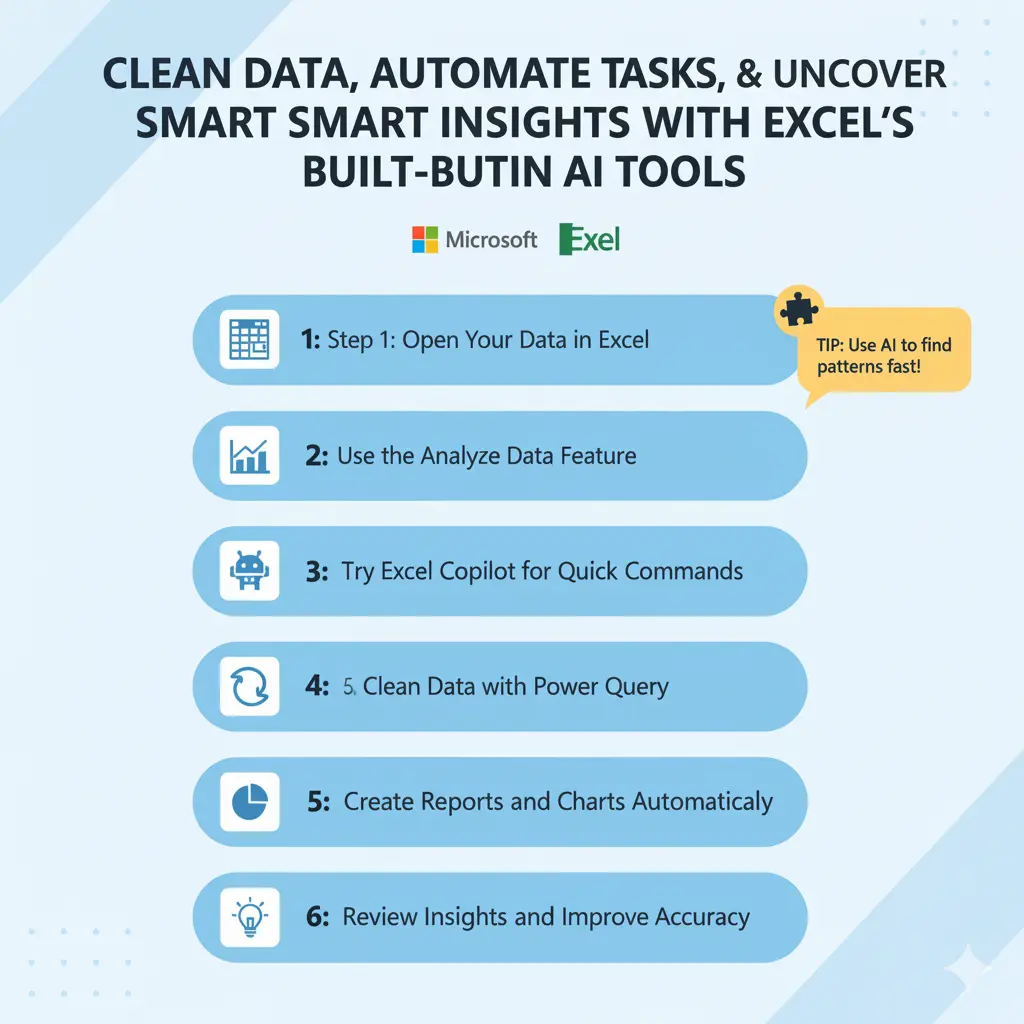
Now that you know what AI in Excel does, let’s explore how to use these tools to make your data work easier. Each feature has a specific purpose, but they all share one goal — saving you time while improving accuracy.
1. Use “Analyze Data” for Instant Insights
The Analyze Data feature (previously called Ideas) lets you explore your data with one click.
Steps:
- Select your data range.
- Go to Home → Analyze Data.
- Excel will instantly generate charts, summaries, and insights.
Example: If you manage monthly expenses, Analyze Data can show where you spend the most or how your spending changes each month.
This smart pattern recognition works much like AI reasoning — it interprets your data context to give meaningful answers. You can learn more about how this process works in AI reasoning systems.
2. Use Excel Copilot for Smart Commands
Excel Copilot acts like your personal assistant inside Microsoft 365. You can type commands such as “Create a bar chart for total sales” or “Summarize this data,” and Copilot does the job in seconds.
Steps:
- Open Excel (Microsoft 365 version).
- Click the Copilot icon or use the prompt bar.
- Ask your question in plain English.
This feature helps beginners handle complex formulas and reports with ease.
3. Clean and Transform Data with Power Query
Messy data often leads to errors. That’s where Power Query saves time. You can clean, combine, and format large datasets without using formulas.
Steps:
- Go to Data → Get & Transform Data → Launch Power Query Editor.
- Choose actions like Remove Duplicates or Split Columns.
- Apply changes and load the cleaned data back into Excel.
Keeping data organized ensures AI can process it accurately and deliver better insights.
4. Use Data Types for Rich Information
Excel’s Data Types feature connects your cells to live, structured information like stock prices, company details, or country stats.
Example: Type a company name → Select Data → Stocks → Excel adds live updates such as share price and CEO name.
It’s one of the simplest ways to add depth to your spreadsheets using AI.
5. Combine Features for Best Results
You can get the most out of Excel when you use these tools together. For example, clean your data with Power Query, explore trends with Analyze Data, and create charts automatically using Copilot.
This mix gives you a complete, AI-powered workflow — from data preparation to insight generation — all inside Excel.
| Pro Tip |
|---|
Keep your Excel updated and use clear headers so AI tools can read your data correctly. The cleaner your input, the smarter your output. |
Real-Life Examples of AI in Excel
AI in Excel isn’t just a fancy feature — it’s a real game-changer for everyday tasks. Whether you work in business, education, or data analytics, these tools can turn raw information into clear, visual insights in seconds.
1. Business Budgeting and Forecasting
Small business owners use Excel’s AI tools to analyze sales data, track expenses, and predict future trends. With Analyze Data, they can quickly spot which products are performing best and where costs are rising.
For example, an online store can upload monthly sales data, and Excel will instantly show which products bring the most profit. This helps with smarter planning and budgeting decisions.
2. Marketing Campaign Analysis
Marketers rely on Excel AI to track ad performance and social-media engagement. Copilot can summarize campaign results or create visual charts that highlight which channels bring the best return on investment.
By combining Excel’s AI with insights from other AI tools, marketers can plan better strategies — similar to how professionals use AI to improve communication tools and understand audience behavior.
3. Data Cleaning for Reports
Accountants, teachers, and data analysts spend hours cleaning spreadsheets. Power Query’s automation reduces that effort. For example, a teacher tracking student grades can automatically remove duplicates, fix formatting, and group results by subject in minutes.
This not only saves time but also makes reports more accurate — an essential skill for anyone exploring data-driven careers like cybersecurity or data analytics, both covered in detail on Tech to Future.
4. Financial Analysis and Insights
Financial teams use Excel Copilot to write formulas or summarize datasets instantly. Instead of manually calculating profit margins, Copilot can generate ready-to-use formulas like =SUMIF() or =AVERAGEIFS() based on your question.
This makes analysis faster, more consistent, and error-free — perfect for busy professionals managing multiple accounts or projects.
5. Academic Research and Reporting
Students and researchers can use AI features to organize and analyze data for projects or surveys. With Copilot, you can ask Excel to explain data trends in plain language — helping you write stronger reports and presentations.
AI in Excel bridges the gap between basic data entry and intelligent data interpretation. It gives users of all levels — from beginners to experts — a smarter way to manage, visualize, and understand information.
Tips to Get the Most Out of AI in Excel
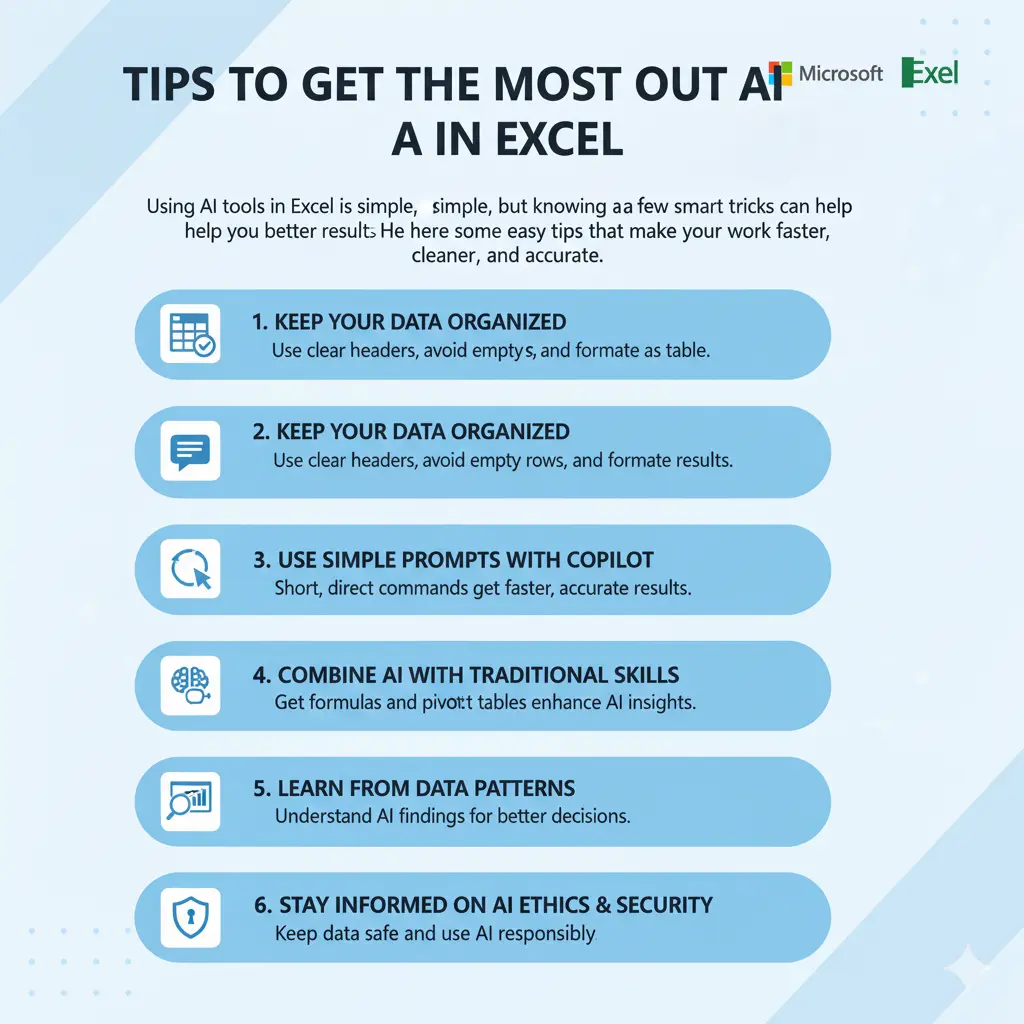
Using AI tools in Excel is simple, but knowing a few smart tricks can help you get even better results. Here are some easy tips that make your work faster, cleaner, and more accurate.
1. Keep Your Data Organized
AI in Excel works best when your data is neat. Always use clear headers, avoid empty rows, and format your data as a table. When Excel understands your structure, it can generate more accurate results.
2. Use Simple Prompts with Copilot
When using Excel Copilot, keep your commands short and direct. For example, instead of typing “Can you please show me the total revenue by product category?” simply say, “Show total revenue by product category.”
Clear instructions help AI respond faster and more accurately.
3. Update Excel Regularly
Microsoft keeps improving Excel’s AI tools. By updating your software, you get access to the latest features and security updates. These improvements often make AI analysis quicker and more reliable.
If you’re interested in how AI updates continue to evolve across industries, check out how it impacts cybersecurity safety and SEO ranking.
4. Combine AI with Traditional Excel Skills
AI tools don’t replace your Excel knowledge — they enhance it. Keep practicing formulas, pivot tables, and charts. The stronger your basics, the better you’ll use AI features for deep insights.
5. Learn from Data Patterns
Pay attention to how Excel’s AI suggests charts, formulas, or summaries. These recommendations reveal how the system interprets your data. Over time, you’ll notice patterns that help you make faster decisions.
AI tools are powerful, but they work best when used thoughtfully. The more you understand your data, the more value you’ll get from Excel’s AI-driven features.
Conclusion: Making Excel Smarter with AI
AI in Excel is no longer a fancy tool — it’s a real helper that changes how we work with data every day. From cleaning messy sheets to finding patterns and creating reports, Excel’s AI features save time and help you make smarter decisions.
Whether you’re a student learning formulas, a marketer tracking campaigns, or a business owner handling budgets, these tools make your job simpler. The best part? You don’t have to be a tech expert to use them. Just a few clicks can turn your raw numbers into meaningful insights.
As AI keeps evolving, we’ll see even more powerful Excel features that connect data, automation, and insights — much like how AI is shaping the future of machine learning in cybersecurity.
So, start small: try the Analyze Data feature today, ask Copilot a few questions, and watch Excel do the heavy lifting for you.
Remember — the smartest users aren’t the ones who work hardest; they’re the ones who use tools like AI in Excel wisely.
FAQs
1. Is there any AI tool for Excel?
Yes. Microsoft has built AI tools like Excel Copilot, Analyze Data, and Power Query right into Excel. These features automate tasks, clean data, and find insights instantly — no coding needed.
2. How to use AI fill in Excel?
You can use AI Fill (through features like Flash Fill or Copilot) to automatically complete data based on patterns. Just start typing, and Excel predicts and fills the rest — perfect for cleaning or organizing lists.
3. How to use ChatGPT and AI in Excel?
You can integrate ChatGPT with Excel using add-ins or APIs. It helps create formulas, summarize data, and even automate reports using plain language. For example, you can ask ChatGPT to “find duplicates” or “summarize sales by month,” and it’ll guide you instantly.
4. Do I need a Microsoft 365 subscription to use AI in Excel?
Yes. Most AI-powered features, such as Excel Copilot and Analyze Data, are available only in Microsoft 365 and Excel Online versions.
5. What’s next for AI in Excel?
Microsoft continues to enhance Excel with deeper automation, smarter insights, and better integration with tools like Power BI. Expect more advanced features that make working with data faster and easier.






- Be Respectful
- Stay Relevant
- Stay Positive
- True Feedback
- Encourage Discussion
- Avoid Spamming
- No Fake News
- Don't Copy-Paste
- No Personal Attacks
- Be Respectful
- Stay Relevant
- Stay Positive
- True Feedback
- Encourage Discussion
- Avoid Spamming
- No Fake News
- Don't Copy-Paste
- No Personal Attacks
